Transform Builder
Advanced visual ETL and field mapping for complex data migrations with 25+ built-in transformation operators.
Last updated:
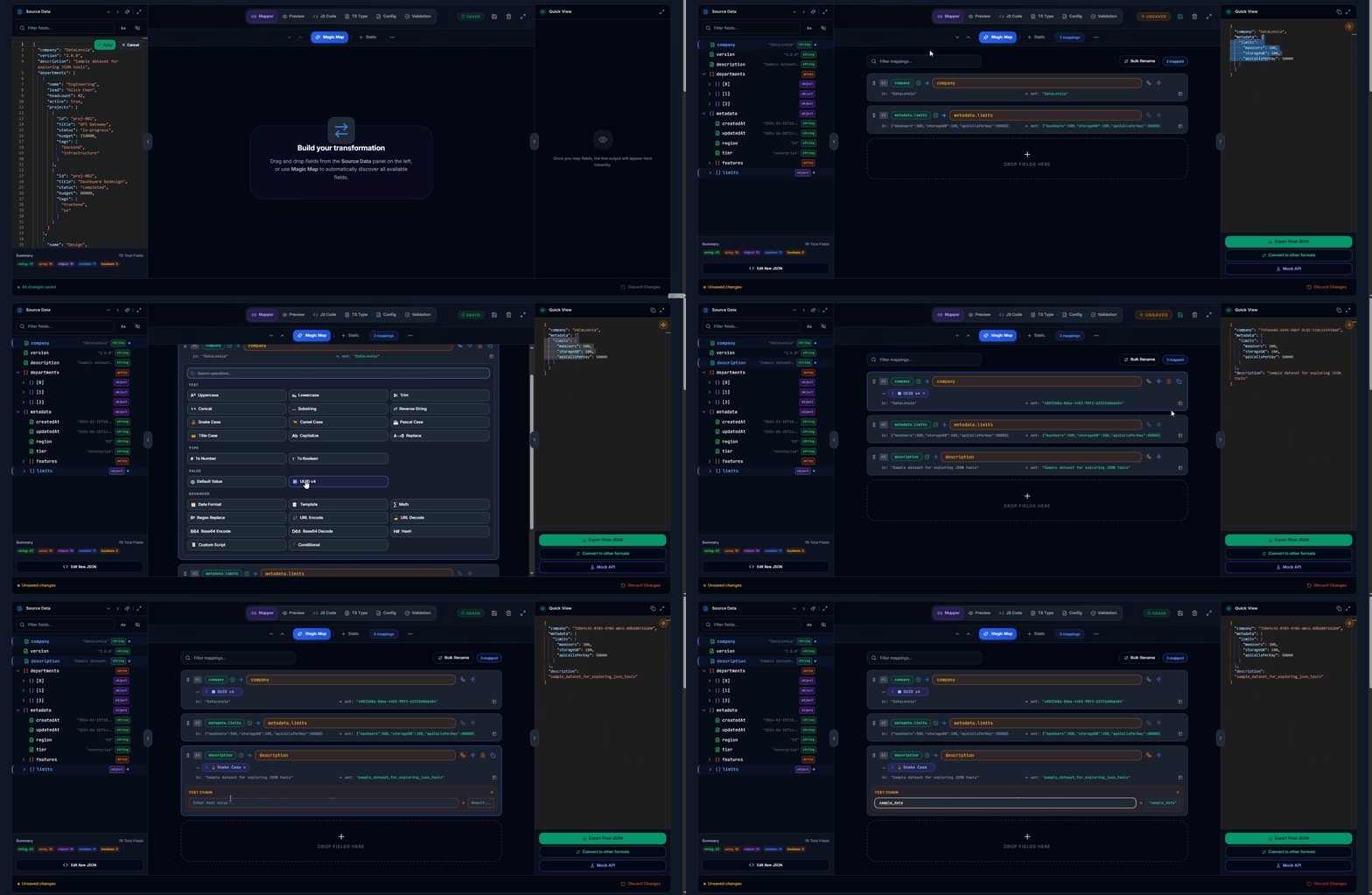
The Transform Builder is DataLensia's flagship tool for data engineering. It provides a sophisticated, desktop-class environment for performing complex Extract, Transform, Load (ETL) operations directly in your web browser. This tool allows you to visually map a source schema to a completely different target structure, apply powerful transformation chains, and export the results instantly. It uses drag-and-drop field mapping and a live preview experience to make even complex JSON migrations intuitive. Designed for developers, data analysts, and architects, the Transform Builder eliminates the need for writing repetitive boilerplate mapping code while maintaining 100% data privacy.
✨ Key Features
- Magic Map: Automatically discover and map every leaf field from your JSON source tree.
- Drag & Drop: Pull fields from your source tree directly into your target output.
- Live Preview: See how your transformations affect real data in real-time.
- Code Export: Generate the JavaScript logic required to run the transformation programmatically.
- Import/Export Configs: Save your mapping configurations as JSON files for reuse across projects.
- Fullscreen Mode: Work in a distraction-free environment.
- Collision Detection: Warns you when two source fields map to the same target key.
⛓️ Transformation Operations (25+)
Chain multiple operations together — they execute in sequence from left to right:
Text Operations
| Operation | Description |
|---|---|
| Uppercase | Convert text to UPPERCASE |
| Lowercase | Convert text to lowercase |
| Trim | Remove leading/trailing whitespace |
| Concat | Prepend or append text to a value |
| Substring | Extract a portion of the text |
| Reverse String | Reverse character order |
| Snake Case | Convert to snake_case |
| Camel Case | Convert to camelCase |
| Pascal Case | Convert to PascalCase |
| Title Case | Convert to Title Case |
| Capitalize | Capitalize first letter |
| Replace | Simple string find and replace |
Type Operations
| Operation | Description |
|---|---|
| To Number | Cast value to a numeric type |
| To Boolean | Cast value to boolean |
Value Operations
| Operation | Description |
|---|---|
| Default Value | Set a fallback for null/undefined |
| UUID v4 | Generate a random UUID |
Advanced Operations
| Operation | Description |
|---|---|
| Date Format | Format date strings or timestamps |
| Template | Use {{field}} references from the source record |
| Math | Apply math operations (round, floor, ceil, +, -, *, /) |
| Regex Replace | Search and replace using regular expressions |
| URL Encode | Encode a string for use in a URL |
| URL Decode | Decode a URL-encoded string |
| Base64 Encode | Encode a string to Base64 |
| Base64 Decode | Decode a Base64 string |
| Hash | Generate a simple hash |
| Custom Script | Run custom JavaScript in a sandboxed environment |
| Conditional | If/Then/Else logic based on value conditions |
🛠️ How to Use
- Navigate to the Transform Builder.
- Upload your source JSON or paste it into the editor.
- Click Magic Map to auto-generate mappings, or drag fields manually.
- For each mapping, optionally:
- Rename the target key.
- Add one or more transformation operations (click ⚡).
- Reorder operations by dragging.
- View the live preview in the right panel.
- Export the transformed result as JSON, or download the mapping config.
Build a Pipeline
With valid source data and at least one mapping, choose Build workflow in the standalone Transform Builder. Apply raw JSON edits and fix mapping configuration errors first:
- Transform and inspect opens JSON or NDJSON Input → Transform → Table View.
- Transform and export opens JSON or NDJSON Input → Transform → JSON File Export.
- Transform and mock opens JSON or NDJSON Input → Transform → GET Mock Output. Edit the pipeline input or mappings and run it again to update the mock output; rerunning unchanged inputs and mappings produces the same data.
The temporary pipeline contains a copy of your current input and mappings, including mapping operations. Run it to inspect or use the transformed result, then edit its nodes as needed. Pipeline changes do not update the standalone Builder automatically. Use Save this pipeline to copy the temporary workflow into your saved standalone pipeline.
🔒 Script Sandbox
Custom scripts are executed in a restricted environment where dangerous globals (window, document, fetch, localStorage, etc.) are blocked. This prevents any unauthorized access from within transformations.
🗂️ Config Management
- Export Config: Download your current mappings as a reusable
.jsonfile. - Import Config: Load a previously saved mapping configuration.
- Clear All: Reset all mappings to start fresh.
🧠 Advanced Field Mapping Techniques
For complex data migrations, the Transform Builder supports several advanced mapping strategies:
- Deep Nesting: Create deeply nested target structures by manually adding rows or using the "Nest" action on existing keys. This allows you to transform flat datasets into hierarchical formats required by modern APIs.
- Array Handling: Map source fields into array structures by dropping them onto target array items. The builder intelligently handles index-based mapping and preserves structural integrity.
- Conditional Mapping: Use the Conditional operator to apply different transformation logic based on the value of a source field. For example, you can format a phone number differently depending on the country code.
- Template-Based Concat: The Template operator allows you to build complex strings using multiple source fields (e.g.,
{{firstName}} {{lastName}}) without needing a long chain of Concat operations.
🚀 ETL Best Practices
To get the most out of the Transform Builder, consider these best practices:
- Start with Magic Map: Always use the "Magic Map" feature first to discover all leaf fields in your source data. You can then prune and rename fields to fit your target schema.
- Chain Operations Strategically: Remember that transformations are executed from left to right. For example, if you need to hash a value, make sure to "Trim" and "Lowercase" it first to ensure consistent hash results.
- Use Default Values: Always provide a "Default Value" for critical fields to prevent your target JSON from having unexpected
nullorundefinedvalues when source fields are missing. - Leverage the Sandbox: Use the "Custom Script" operator for logic that can't be achieved with built-in operators. Since it's sandboxed, you can safely write complex JavaScript snippets to handle edge cases.
🔄 Integration with External Workflows
The Transform Builder is designed to fit seamlessly into your existing development lifecycle:
- Programmatic Use: Once you've perfected your mapping, click the JS Code button to generate a standalone JavaScript function. You can paste this function directly into your Node.js or browser-based application to run the transformation at scale.
- Version Control: By exporting your mapping configuration as a JSON file, you can check it into your Git repository along with your project's source code, enabling team-wide collaboration on data transformation rules.
- GitHub Sync: Use DataLensia's built-in GitHub synchronization to automatically back up your workspace metadata, including all active transformation mappings, to a remote repository.
🚀 Try it now
Build your first professional mapping in the Transform Builder.