JSON Comparator
Compare two or more JSON files with real-time diffing, statistics, multi-panel support, and semantic analysis.
Last updated:
The JSON Comparator is a powerful tool for debugging API changes, configuration drifts, or version mismatches. It supports traditional side-by-side diffing as well as advanced multi-panel comparisons for complex workflows.
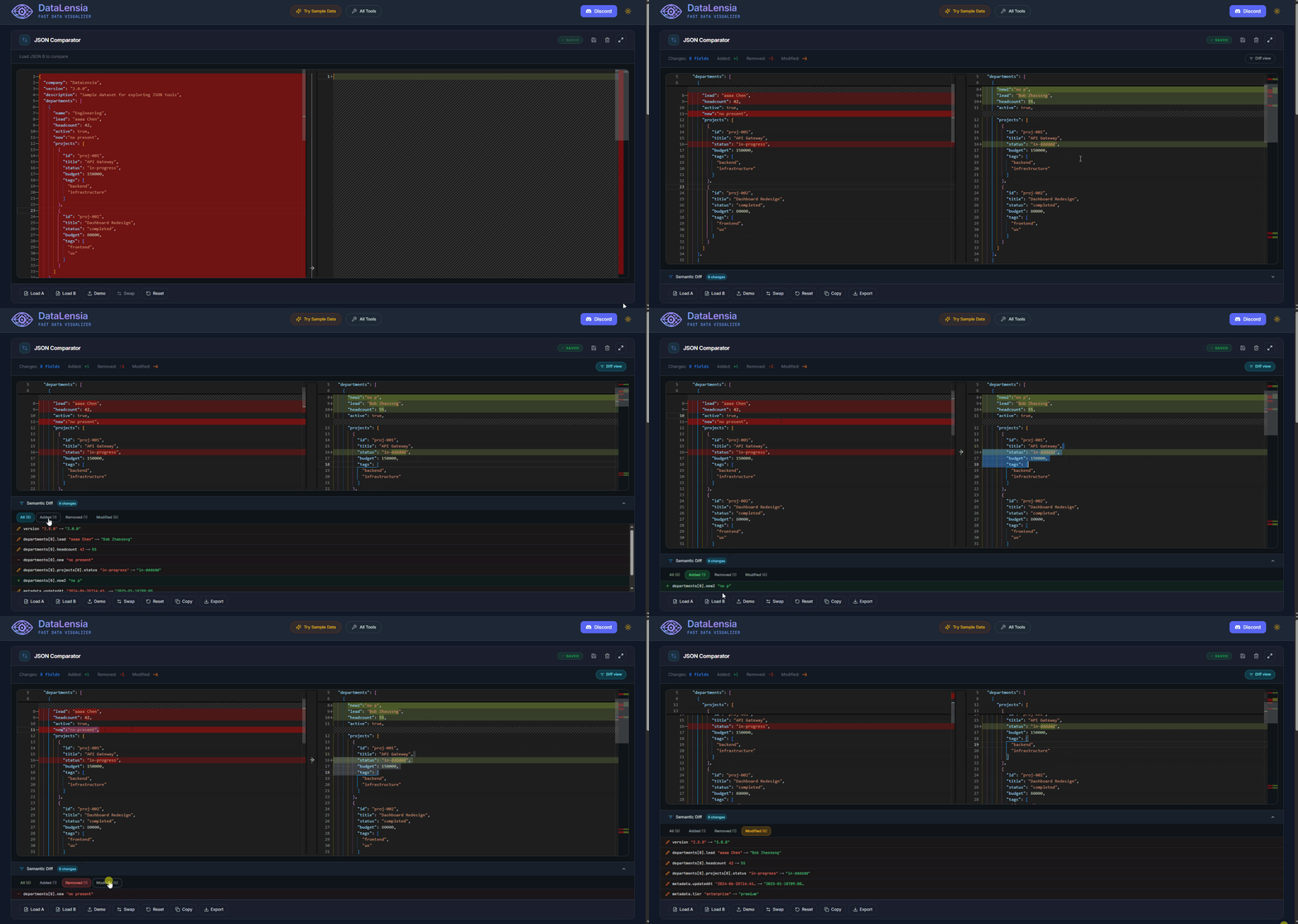
🌓 Comparison Modes
The tool offers two distinct modes to suit different comparison needs:
1. 2-Way Diff (Standard)
The classic side-by-side view powered by Monaco's DiffEditor. It's ideal for a high-fidelity comparison between exactly two documents, showing character-level changes.
2. Multi-Panel (Advanced)
A grid-based view that allows you to compare between 2 and 6 JSON files simultaneously. This mode is perfect for comparing multiple environments (e.g., Dev, Staging, Prod) or different versions of an API response in one glance.
⚙️ Key Features
- Multi-Panel Support: Dynamically add, remove, and rename up to 6 independent JSON panels.
- Base Reference: In Multi-Panel mode, select one JSON as the "Base" to which all other panels are compared.
- Synchronized Scrolling: All editors scroll in unison, making it easy to track the same object across multiple files.
- Visual Highlighting:
- 2-Way Mode: High-fidelity diffs with Red (removed) and Green (added) line backgrounds, plus character-level highlighting for precise changes.
- Multi-Panel Mode: Editors use Amber highlights for all differences relative to the base. The Semantic Diff table further distinguishes these as Added, Modified, or Missing.
- Semantic Diff Table: A centralized, searchable table that lists every structural difference across all panels, allowing for quick navigation to specific keys.
- Editable Panels: All editors are fully interactive; diffs and highlights update in real-time as you type.
- Stateless Sharing: Share the exact state of your comparison (all JSONs and settings) via a compressed URL.
- Swap Panels: Quickly reverse perspectives in 2-way mode.
- Format/Pretty-Print: Auto-format all panels for consistent indentation.
- Fullscreen Mode: Expand the tool to fill the entire viewport.
📊 Semantic Diff Analysis
Beyond simple text comparisons, the tool performs a structural analysis of your JSON data:
| Feature | Description |
|---|---|
| Total Changes | Sum of all additions, deletions, and modifications |
| Additions | Number of lines added in the modified version |
| Deletions | Number of lines removed from the original |
| Modifications | Number of lines that changed value |
| Identical | Whether the two JSONs are structurally identical |
🧩 Multi-Panel Mode
Beyond 2-way comparison, the JSON Comparator supports Multi-Panel Mode for comparing up to 6 documents simultaneously against a single base reference.
- N-Way Comparison: Add multiple panels to compare several JSON versions at once.
- Base Selection: Choose any panel as the "Base Reference" to anchor the comparison.
- Synchronized Scrolling: All panels scroll in unison for easy visual alignment.
- Aggregated Semantic Diff: A unified table below the editors summarizes differences across all panels.
🔥 Change Heatmap
In Multi-Panel mode, a high-performance Change Heatmap sidebar provides a bird's-eye view of all modifications across the entire document set.
- Visual Overview: Instantly identify where additions (green), modifications (amber), and removals (red) are concentrated.
- Interactive Navigation:
- Hover to Expand: Move your mouse over the heatmap to see a detailed density map.
- Click to Scroll: Click any region in the heatmap to instantly scroll all editors to that position.
- Aggregated Data: The heatmap summarizes changes from all secondary panels relative to the base document, ensuring no change goes unnoticed even in massive files.
📤 Export & Report
You can download a detailed report of your comparison, which includes:
- Structural statistics (total changes, additions, etc.).
- A full list of semantic differences.
- The original JSON content from all panels.
💾 Workspace Integration
When used inside a workspace, the Comparator integrates seamlessly with your data:
- The left panel (A) automatically loads your workspace data.
- Edits made to the primary panel can be saved directly back to the workspace using the Apply Changes button.
🛠️ How to Use
- Select Mode: Use the toggle at the top to choose between 2-Way or Multi mode.
- Load Data: Paste JSON content, upload files, or use the Demo button to see sample data.
- Set Base (Multi-mode): Choose which panel should serve as the reference for comparison.
- Analyze: Use the Semantic Diff panel at the bottom to browse specific changes. Click on any path to instantly scroll all editors to that location.
- Share/Export: Click the Share (🔗) icon to generate a link, or Export to download the results.
🚀 Try it now
Open the JSON Comparator to start comparing your data.