JSON Editor
Professional-grade JSON editing with Monaco editor, interactive tree viewer, workspace management, and visualization tools.
Last updated:
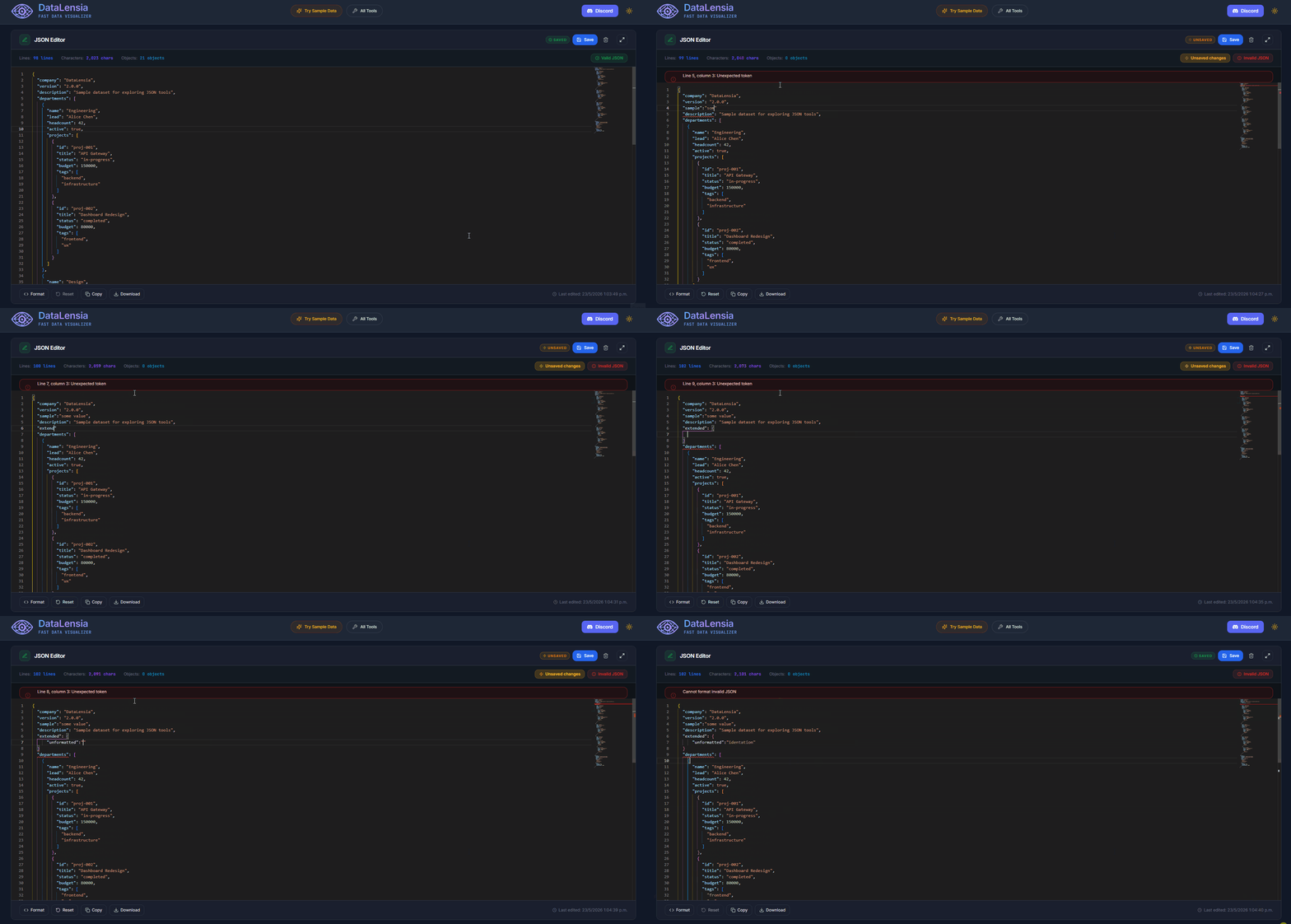
The JSON Editor is DataLensia's core interface for working with JSON data. It combines a Monaco-powered code editor (the engine behind VS Code) with an interactive tree viewer, workspace management, and a full suite of integrated tools.
✨ Key Features
- Syntax Highlighting: Easily distinguish between keys, strings, numbers, and booleans.
- Real-time Validation: Instant feedback on syntax errors with inline markers.
- Smart Formatting: Pretty-print your JSON with a single click.
- Search & Replace: Full support for regex-based find and replace within the editor.
- Foldable Sections: Collapse large objects and arrays to focus on what matters.
- JSON Tree Viewer (JSONView): An interactive, virtualized, collapsible tree view with:
- Keyboard navigation (Up/Down/Left/Right arrows).
- Breadcrumb navigation for deep structures.
- Copy path, copy value, copy node actions.
- Search within the tree view.
- Type badges on every node.
- Fullscreen mode.
- Action Toolbar: Copy, download, format, load sample data.
- Fullscreen Mode: Expand the editor to fill the entire viewport.
- Dark/Light Theme: Follows your system preference or manual toggle.
Continue in another tool
In standalone mode, Open in… can send the current JSON or NDJSON to JSON Converter, JSON Schema Generator, Flow Diagram, UML, or Mermaid. The menu is available in fullscreen and disabled for empty or invalid content. The current text is copied, including recent edits; the destination does not stay synchronized with Editor.
The destination opens an isolated temporary tab session. Edits and, for Schema Generator, inference settings survive refreshes without replacing its saved standalone session. Use the session notice to save explicitly or return to the saved session. Save or download temporary work before closing the tab.
Build a workflow in Pipelines
Standalone JSON Editor also offers contextual workflow recipes under Build workflow. Each recipe starts with the current JSON or NDJSON document and opens an isolated temporary Pipeline session:
- Explore data:
Input → Table View + Mermaid + UML + Flow Diagram. Mermaid and UML start with a suggested best-fit diagram; any type you choose is remembered in the pipeline. - Create mock API:
Input → Mock API. - Process and export:
Input → Transform → JSON export.
These recipes are starting points rather than live links. Configure the generated nodes in Pipelines, run the workflow, and use Save this pipeline if you want to keep it as your standalone pipeline. The Editor session remains unchanged.
🗂️ Workspace Integration
When used as part of a workspace (the main home page), the editor is integrated with:
- Visualize Panel: Node graph, flow diagram, and JSON tree view.
- Explore & Filter: Tabular data explorer with filtering, sorting, and pagination.
- Tools Panel: Access to Transform Builder, Comparator, Schema Generator, and Convert tool.
- Notes Panel: Add annotations and notes alongside your data.
🛠️ How to Use
- Navigate to the JSON Editor.
- Paste, type, or upload your JSON data (supports drag & drop of JSON, CSV, and NDJSON files).
- Use the Format button to clean up the structure.
- Toggle between Editor and Tree View tabs to explore or edit your data.
- Use the Share button (available in both the workspace header and standalone action bar) to generate a compressed link.
- Click Download to save your JSON locally.
⌨️ Keyboard Shortcuts
| Shortcut | Action |
|---|---|
Ctrl+Shift+F | Format JSON |
Ctrl+F | Find in editor |
Ctrl+H | Find and Replace |
Ctrl+/ | Toggle line comment |
Arrow Keys | Navigate tree view |
Enter | Expand/collapse node in tree |
🚀 Try it now
Navigate to the JSON Editor to start viewing and editing your JSON.