Workspaces
Manage your data projects locally with persistent browser-based workspaces, folders, import/export, and API integrations.
Last updated:
DataLensia uses Workspaces to help you organize your data processing tasks. Everything is saved locally in your browser's localStorage, ensuring your data never touches a server.
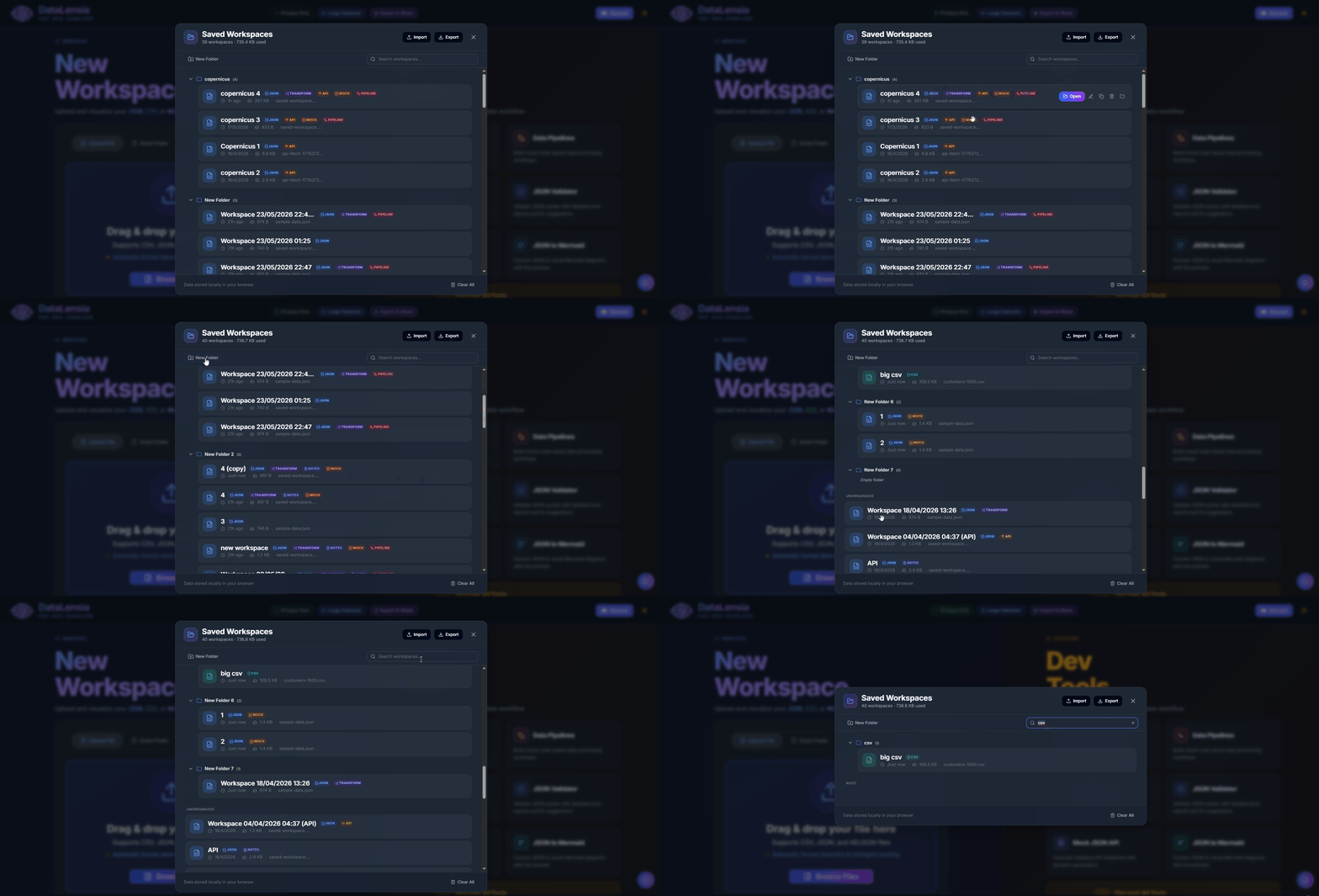
📁 What is a Workspace?
A workspace captures the entire state of your session, including:
- The uploaded dataset (JSON/CSV).
- Active transformation mappings (Transform Builder state).
- Mock API configuration.
- Notes and annotations (Markdown).
- API connection configuration (if loaded from an external API).
⚙️ Managing Workspaces
You can access the Workspace Manager from the landing page or from within any active workspace.
- Save / Save As: Persist your current progress with a custom name.
- Rename: Give your workspace a descriptive name.
- Switch: Jump between different data projects instantly.
- Duplicate: Clone a workspace for experimentation.
- Delete: Clear your local data when a project is finished.
📂 Folders
Organize your workspaces into folders for better project management:
- Create folders to group related workspaces.
- Rename or delete folders.
- Move workspaces between folders via the context menu.
📤 Import & Export
- Export All: Download all your workspaces as a single
.jsonfile for backup or migration to another device. - Import: Load a previously exported workspaces file — validated before import to prevent corruption.
🌐 API Workspaces
Workspaces can be connected to live API endpoints:
- API Fetch: Load data from a REST or GraphQL endpoint directly into a workspace.
- Authentication: Supports Bearer tokens, Basic Auth, and custom headers.
- Refresh: Re-fetch the API data to see the latest changes.
- Persistence: API configuration is saved with the workspace so you can refresh at any time.
🔗 Pipeline Integration
Workspaces integrate directly with the Data Pipelines editor via Workspace Nodes:
- Read-only access: Any saved workspace can be used as a data source inside a pipeline. Drag a JSON Input node and select a workspace to load its dataset into the pipeline graph.
- No duplication: The workspace data is read at pipeline execution time — you don't need to copy/paste JSON between tools.
- Combining tools: Use your workspace dataset as the starting point for a pipeline that applies filters, transforms, and exports — all in one flow.
Workspace nodes are read-only in the pipeline editor. To modify the underlying data, edit it in the workspace first and then re-run the pipeline.
💾 Auto-Save
DataLensia auto-saves unsaved changes (editor content, notes, transform mappings) so you won't lose work if you navigate away. However, we recommend clicking the Save button before closing your browser to ensure all changes are permanently captured.
📊 Storage Information
- Maximum of 50 workspaces to prevent localStorage bloat.
- Payloads are compressed using the same LZ-string algorithm used for sharing — so even large datasets are stored efficiently.
- The Workspace Manager shows the compressed size of each workspace.
🛡️ Privacy Note
Because workspaces are stored locally in your browser, they are specific to the device and browser you are using. Clearing your browser cache or site data will remove your saved workspaces. Use the Export feature to back up important projects.